


There are various reasons why a computer will shut down. Chief among these is component
overheating. The most common cause of computer overheating is a fan going bad and failing
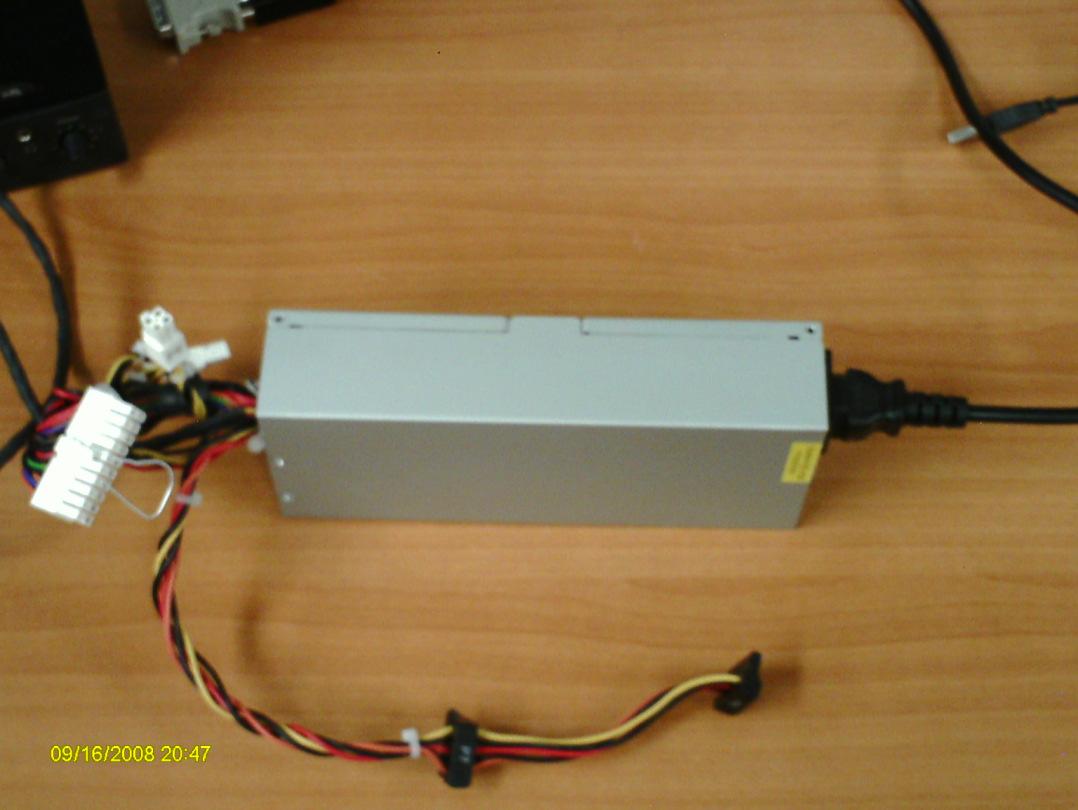
to cool down a component. Most computers have power supplies similar to this one:
overheating. The most common cause of computer overheating is a fan going bad and failing
to cool down a component. Most computers have power supplies similar to this one:

When a PSU fan goes bad, it is not able to cool down the power supply hence the device will
heat up. The excess heat generated by the PSU will add to the overall temperature of the
system unit. If this failure is not corrected, the PSU will become damage. A damaged PSU can,potentially, damage the components as well as the motherboard, itself.
If your system appears to be exhibiting an, abnormally, high temperature and you suspect that the PSU’s fan has gone bad but are not sure, there is a test you can perform which should prove weather the fan is working or not. This test is called, “The PSU Paper Clip Test.” The first things we need to identify are the main power connectors that run from the PSU and attach to the motherboard to supply the voltage and current that your motherboard and its components need. Most power supplies have a 20 or 24 pin ATX Connector like the one shown in the picture on the left and a 4 pin ATX Connector like the one shown in the picture on the right:
heat up. The excess heat generated by the PSU will add to the overall temperature of the
system unit. If this failure is not corrected, the PSU will become damage. A damaged PSU can,potentially, damage the components as well as the motherboard, itself.
If your system appears to be exhibiting an, abnormally, high temperature and you suspect that the PSU’s fan has gone bad but are not sure, there is a test you can perform which should prove weather the fan is working or not. This test is called, “The PSU Paper Clip Test.” The first things we need to identify are the main power connectors that run from the PSU and attach to the motherboard to supply the voltage and current that your motherboard and its components need. Most power supplies have a 20 or 24 pin ATX Connector like the one shown in the picture on the left and a 4 pin ATX Connector like the one shown in the picture on the right:

These connectors are needed by your motherboard in order to function properly. As mentioned above, they supply the proper voltages and currents that the various components attached to the motherboard need in order to work properly. These components include, the motherboard itself, the CPU, the memory modules, the hard drive and the optical drive as well as any video cards that your system my use.
To perform the PSU Paper Clip test, we’ll need to examine the power supply connectors closely and find the one that has a lone green wire. Ninety nine percent of the time, this green wire is located on pin 14 on the bigger connector. In addition to the green wire, locate the other black wires that are present in the connector. Here’s an image of the wires in quest ion:
To perform the PSU Paper Clip test, we’ll need to examine the power supply connectors closely and find the one that has a lone green wire. Ninety nine percent of the time, this green wire is located on pin 14 on the bigger connector. In addition to the green wire, locate the other black wires that are present in the connector. Here’s an image of the wires in quest ion:

Once the wires are located, you will need a paper clip such as the one shown here:


Once the paper clip has been attached to the green and black wires, this will enable the power supply to turn on while it is disconnected from the motherboard something not possible,otherwise. After this is done, turn off the power switch, if one is present, and connect the power cord to the PSU as shown below:
If the PSU does not have a switch, then as soon as you connect the power cord, power should flow through the PSU and you can then observe the fan on that power supply to see if it turns
as shown in the image that follows:
as shown in the image that follows:

If the fans turns, then this means that the PSU is, at least, delivering some voltages out and
overheating might not be occurring. If, on the other hand, the fan does not turn, then
overheating might not be occurring. If, on the other hand, the fan does not turn, then
overheating is, most, likely occurring and the PSU will eventually fail and may damage some
other components, in the process. This test works ninety nine percent of the time. There is,
however, that one percent. If you want to be sure of the power supply’s functionality I would
suggest that you purchase a power supply tester. This will give you, more, accurate results then the PSU Paper Clip test.
however, that one percent. If you want to be sure of the power supply’s functionality I would
suggest that you purchase a power supply tester. This will give you, more, accurate results then the PSU Paper Clip test.


